
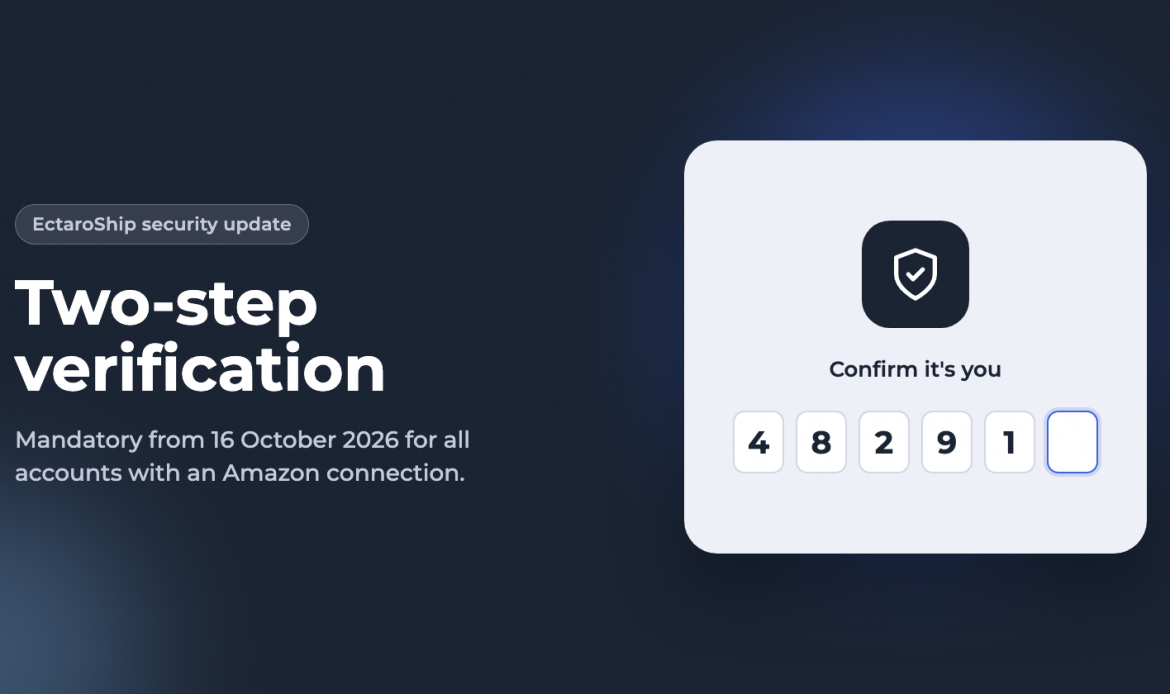
From 16 October 2026, two-step verification is mandatory for every EctaroShip account with an active Amazon connection. Your account gives access to your orders, customer addresses and marketplace connections, so we’re adding an extra layer of security. Amazon requires this for every app that works with seller data.
The good news: you don’t have to install anything. If you do nothing, we simply e-mail you a code when you sign in.
What is two-step verification?
When you sign in, you confirm your identity with a second step in addition to your password. Even if someone knows your password, they can’t get into your account without that second step. You may also know it as MFA or 2FA.
What you’ll see when you sign in
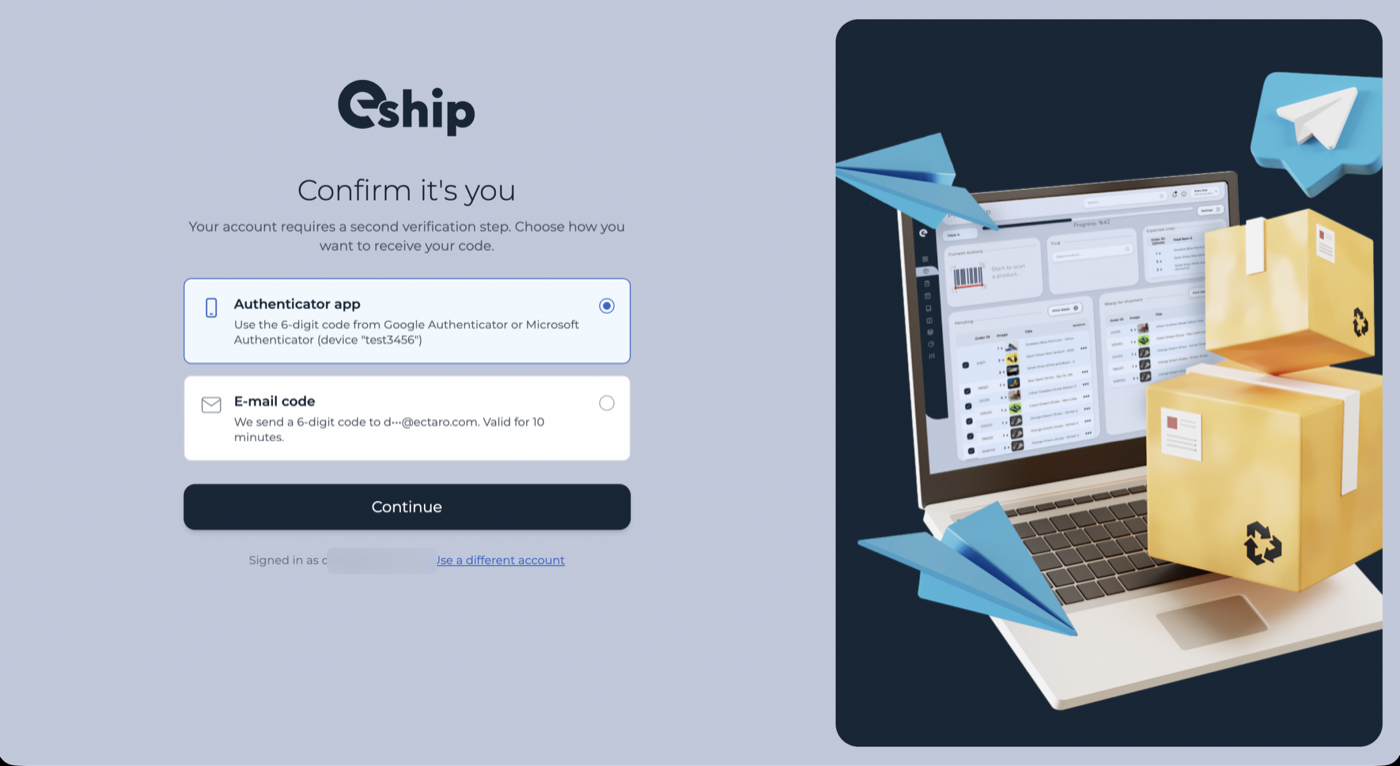
After entering your password, EctaroShip asks you to confirm it’s you. You choose how you want to receive your code:
- Authenticator app: the 6-digit code from Google Authenticator, Microsoft Authenticator or a similar app.
- E-mail code: we send a 6-digit code to your e-mail address.
Option 1: Code by e-mail (no setup needed)
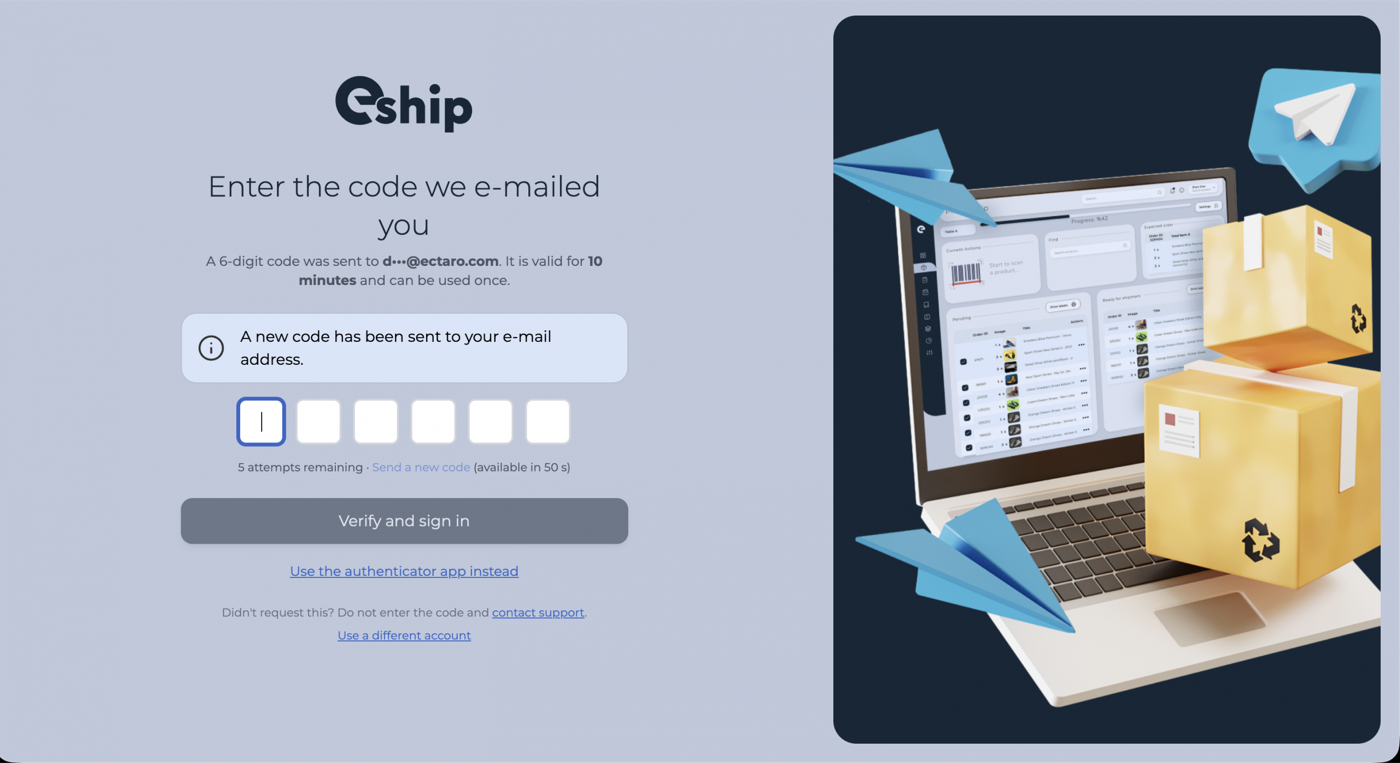
Choose E-mail code and click Continue. Enter the 6-digit code from the e-mail and click Verify and sign in.
The e-mail comes from Ectaro Support. Each code is valid for 10 minutes and can only be used once.
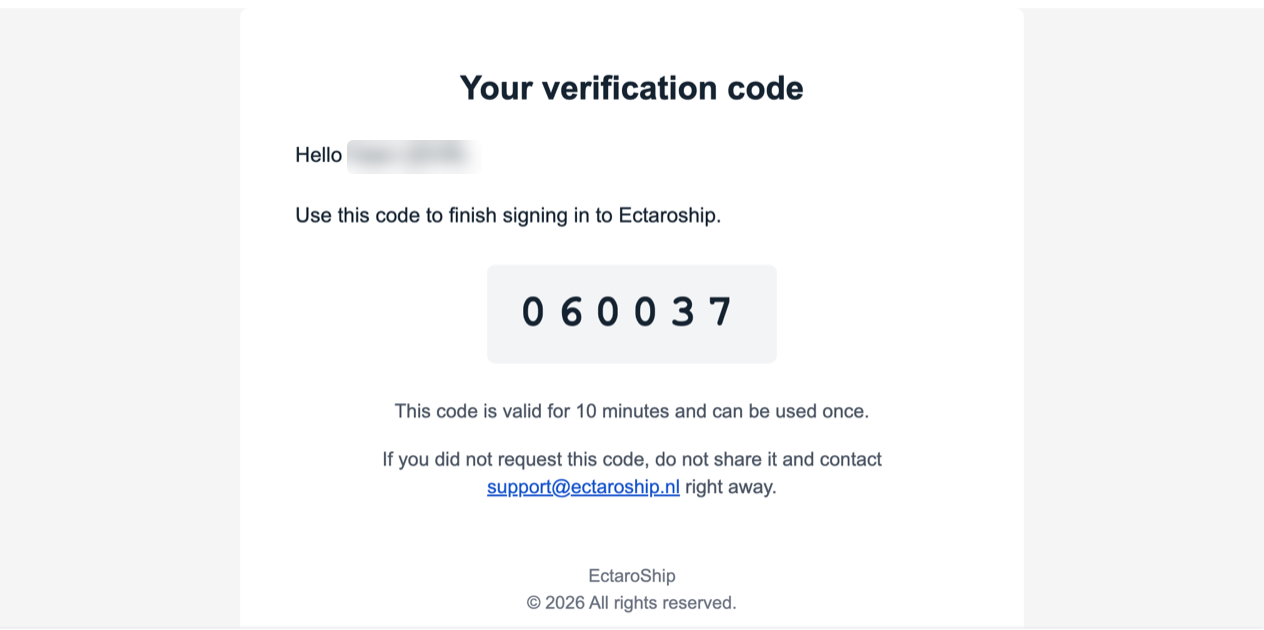
Never share this code with anyone. EctaroShip will never ask you for it by phone, chat or e-mail. If you receive a code you didn’t request, contact [email protected] right away.
Option 2: Authenticator app (recommended)
An authenticator app is faster and works without waiting for an e-mail. You set it up once:
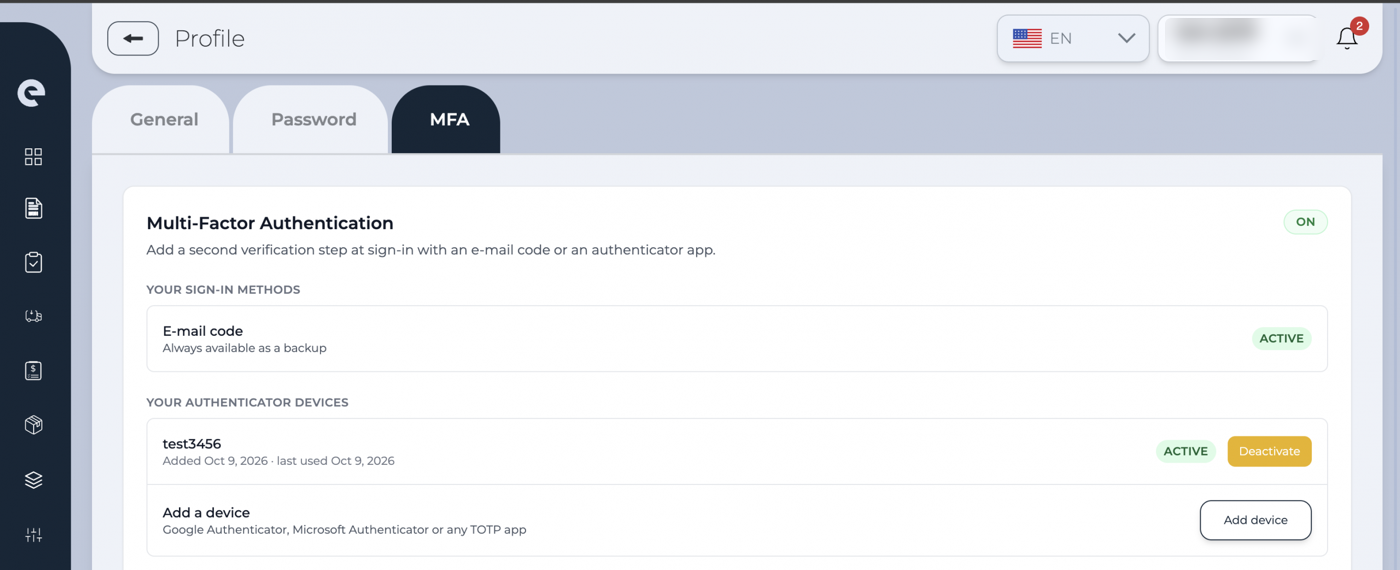
- Go to Profile → MFA. Under Your authenticator devices, click Add device.
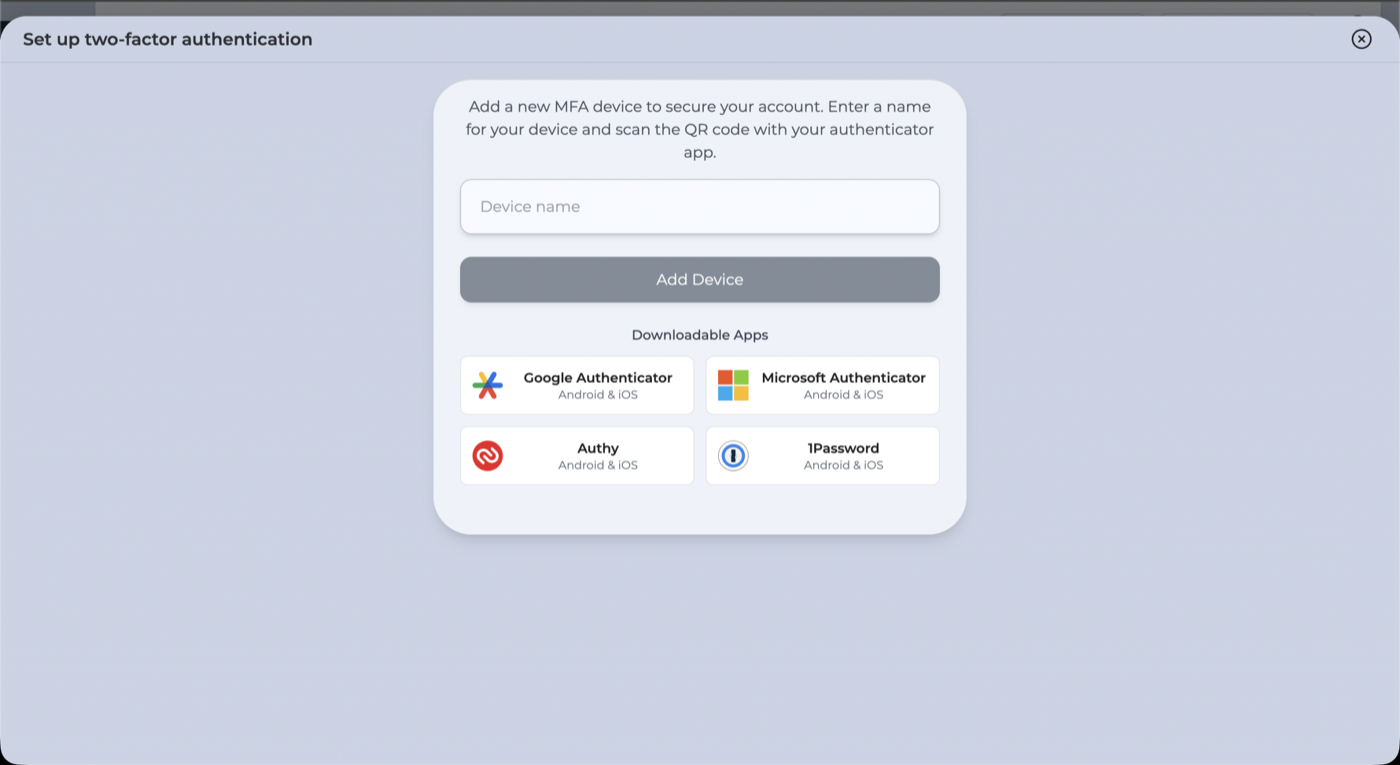
- Install an authenticator app on your phone if you don’t have one yet, for example Google Authenticator, Microsoft Authenticator, Authy or 1Password. Enter a name for your device (for example “My phone”) and click Add Device.
- Scan the QR code with the app, or type the manual entry key. Enter the 6-digit code that the app shows and click Activate.
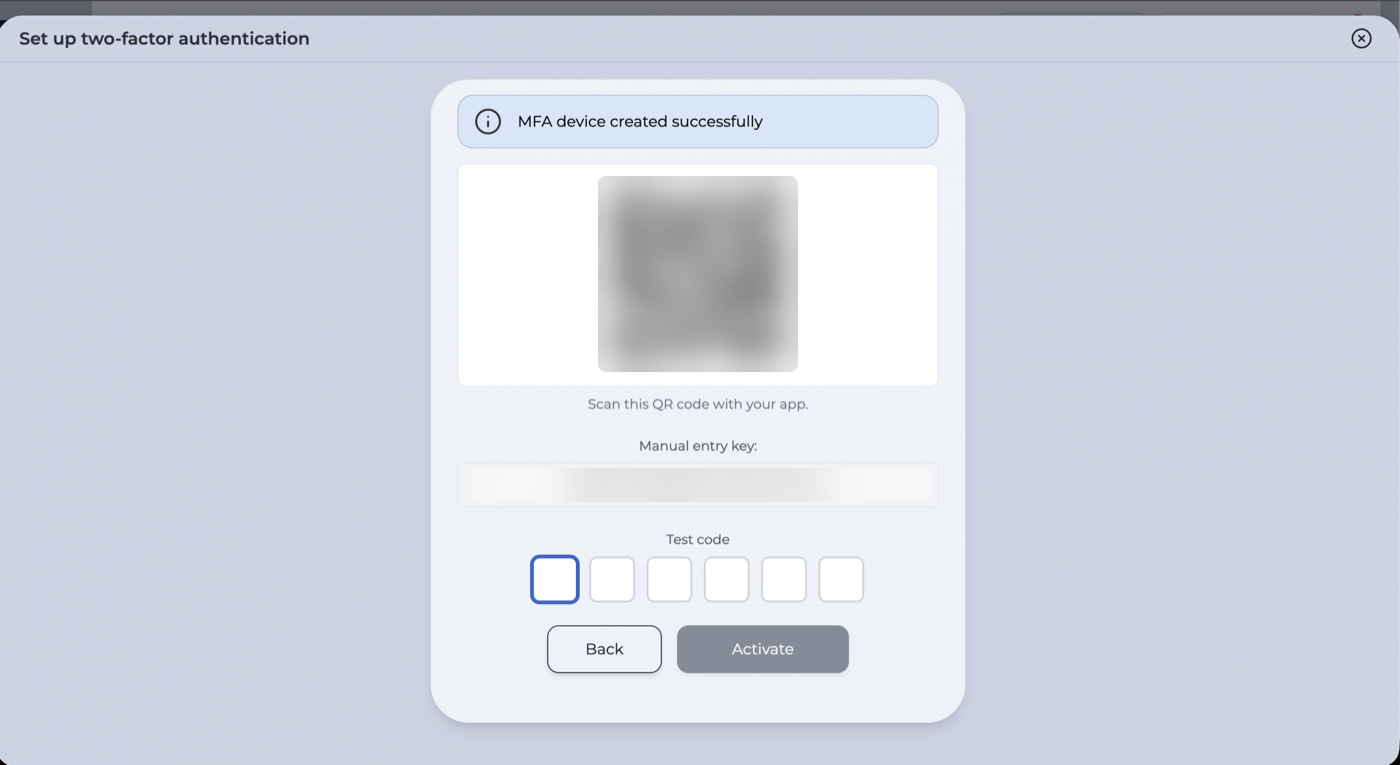
Done. From now on, choose Authenticator app when you sign in.
What happens on 16 October?
- All users of accounts with an Amazon connection are signed out once. Sign in again and confirm it’s you with the second step.
- Orders, stock and shipping labels keep working. Your Amazon order and stock synchronisation is not affected, and nothing is lost.
- Connections that use API tokens and the Partner API are not affected.
Frequently asked questions
I’ve lost my phone. What now?
Sign in with an e-mail code. It is always available as a backup. To remove the old device, contact our support team.
Can I turn it off?
Not for accounts with an Amazon connection; it’s an Amazon requirement. For other accounts it’s optional, but we recommend it for everyone.
Do all my colleagues need to do this?
Yes. It applies to every user on the account, and each user signs in with their own code.
Questions?
Contact us at [email protected].