
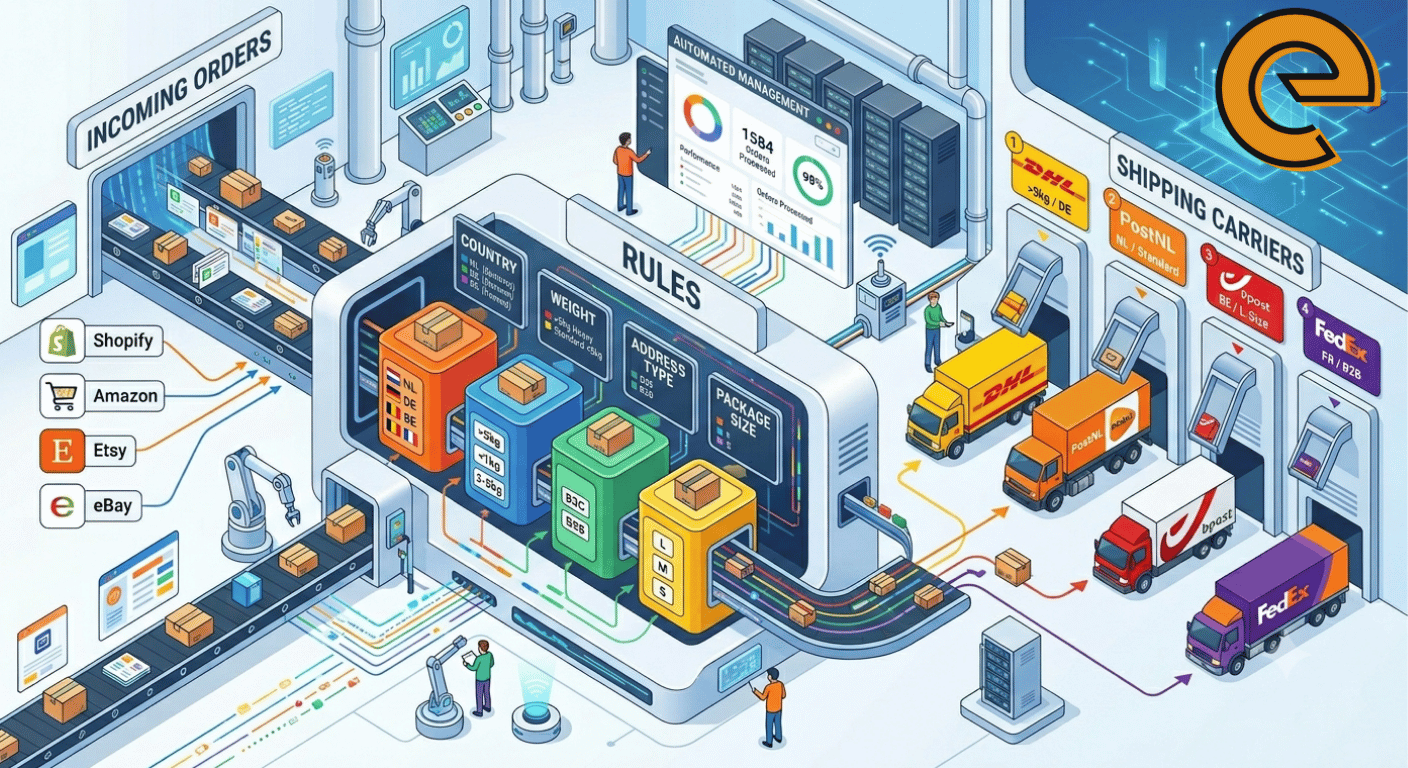
Automate your logistics, eliminate manual errors, and optimize your fulfillment process by understanding how shipping rules work.
🤔 What are Shipping Rules?
Shipping rules allow you to automatically assign a sender address and a shipping method to incoming orders based on specific criteria. Each rule consists of two core parts:
🔹 Conditions (IF)
When should this rule apply? (e.g., Country, Weight, Marketplace)
🔸 Actions (THEN)
What should happen when it matches? (e.g., Assign DHL, select Berlin Warehouse)
🔄 Quick Overview — How It Works
Rules in your list are evaluated from top to bottom (#1, #2, #3…). The system processes them in a specific chain reaction:
- Top-to-Bottom Check: An order is checked against your rules sequentially.
- Full Match Required: If all conditions of a rule match, its actions are applied.
- Sender Address Flow: If only a Sender Address is set, the system applies it and continues evaluating lower rules.
- The Stop Signal: If a valid Shipping Method is assigned, evaluation stops immediately — lower rules do not run.
- Suitability Fallback: If a rule matches but the chosen shipping method is not suitable (due to weight limits, country restrictions, etc.), that method is skipped and the next rules are automatically tried.
💡 Practical Examples & Scenarios
Example 1 — Same country, Brievenbus vs. Parcel
Correct Order (Specific condition first):
1. Delivery Country is NL AND Dimension is Brievenbus → Shipping Method: Brievenbus
2. Delivery Country is NL → Shipping Method: Parcel
What happens? A small letterbox-sized NL order hits rule 1 first and gets the Brievenbus product. A larger NL order falls through to rule 2 and becomes a standard Parcel.
⚠️ What happens if you reverse this order?
If you put the general Delivery Country is NL → Parcel rule at the top, every single NL order will match it immediately and the evaluation chain will stop. Your specific Brievenbus rule underneath will never run, and letterbox-sized orders will incorrectly be assigned the standard Parcel method.
Example 2: Specific vs. General (Why Order Matters)
Wrong Order: If you put NL → DHL Parcel as Rule #1, a heavy 6 kg NL order will match it immediately and stop. The rule below for heavy packages (NL + Weight > 5kg → DHL Heavy) will never run.
Correct Order:
1. NL AND Weight ≥ 5 kg → DHL Heavy
2. NL → DHL Parcel
Example 3: Sender Address Alone Does Not Stop the Chain
If Rule #1 says Marketplace is Amazon DE → Berlin Warehouse, the order gets the warehouse address, but the system keeps looking down the list until it finds a rule with a Shipping Method (e.g., Country is DE → DPD Deutschland).
🚀 Quick Check: Mini Scenario
Incoming Order: From bol.com, shipping to NL, weighing 1.2 kg (Normal products).
Your Active Rules:
- Weight ≥ 10 kg → DHL Freight (Skipped – Weight doesn’t match)
- Delivery Country is NL → PostNL Letterbox (MATCHES! Applied & Chain Stops)
- Delivery Country is BE → Bpost (Never evaluated)
🛠️ App Settings & Parameters
When creating or editing a rule, you can use the following configuration options available in the dashboard:
| Condition Type | What it checks | Example In-App |
|---|---|---|
| Delivery Country | Recipient country code (Mandatory) | is NL |
| Weight | Total order weight (in kg) | more than or equal 5 |
| Dimension | Package size categorization | is Brievenbus / Paket |
| Marketplace | Connected integration/store channel | is bol.com |
| Quantity | Total item count in the order | more than 3 |
⚠️ Common Mistakes to Avoid
- Treating KG as Grams: Values entered are strictly in kilograms (kg). Entering
2500means 2500 kg! For a 2.5 kg package, always enter2.5. - Missing Delivery Country: If your action includes a Shipping Method, the app requires you to define a Delivery Country condition. Otherwise, the rule cannot be saved.
- New Rules Forgotten at the Bottom: Newly created rules are added to the bottom by default. Remember to use the arrows to move them up if they are highly specific.
- Combining Conditions (AND / OR): Rows on separate lines default to AND (all must match). Use the + OR button only when an alternative condition is sufficient.
Need help setting up your rule combinations? Our technical team is ready to assist you anytime.
Best regards,
Ectaro Team