
Why we built direct printing
Until now, every label you created opened as a PDF in a new tab, and you had to press “Print” yourself. On a busy day that is a lot of extra clicks, and browsers sometimes block those tabs.
With direct printing, your labels go straight to your printer in one click, without opening a tab. All you need is the free Ectaro Print app, installed once on your computer.
What changes, and when
Direct printing is available in Ectaroship from today. It is optional and is switched on per computer: if you do not switch it on, your labels keep opening in a new tab as they do today.
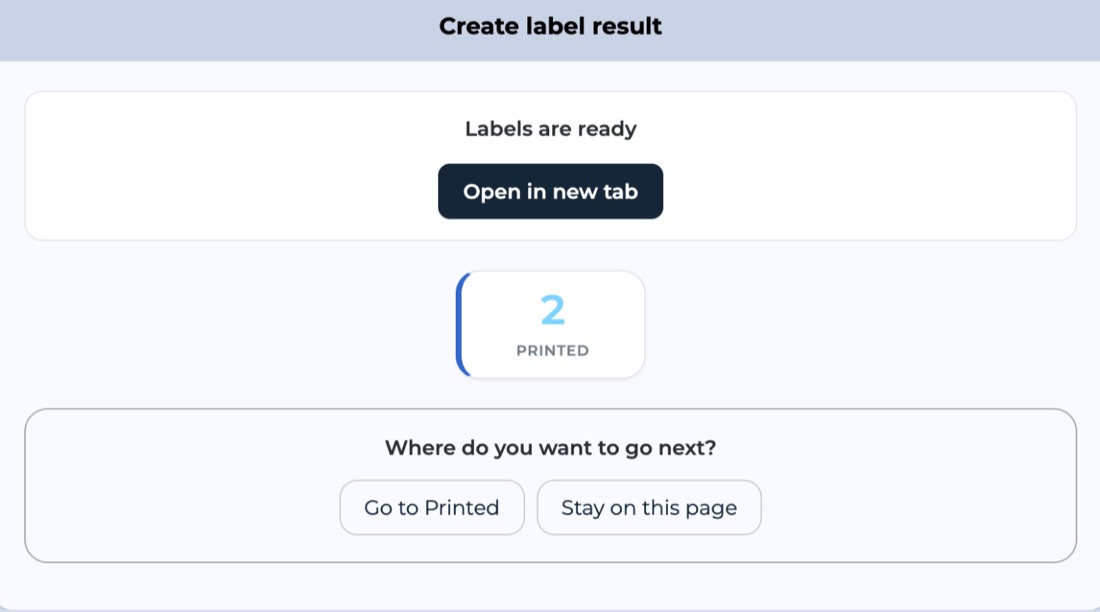
One change applies to everyone: after you create bulk labels, they no longer open in a new tab automatically. The result screen now shows a Print button (when direct printing is on) and an Open in new tab button. Browsers often block tabs that open on their own; a button always works.
What is Ectaro Print?
Ectaro Print is a small app that runs in the background on your computer. When you create a label, Ectaroship sends it to Ectaro Print, which prints it on the printer you chose:
- The shipping label goes to your label printer (100 × 150 mm).
- The commercial invoice goes to your A4 printer.
What do you need?
- Computer: Windows (64-bit) or Mac (Apple Silicon or Intel).
- Browser: Google Chrome or Microsoft Edge (recommended).
- Label printer: a printer installed on your computer that prints 100 × 150 mm shipping labels.
- A4 printer (optional): for commercial invoices on shipments outside the EU.
Make sure your printer already prints normally from your computer. Ectaro Print does not install printers; it uses the ones you have. Installing may require administrator rights.
How do you install it?
- In Ectaroship, open Settings → Direct printing.
- Under Install Ectaro Print, download the file for your computer: Download for Windows (.exe), or on a Mac Apple Silicon (M1 and later) or Intel. Not sure which Mac you have? Check Apple menu → About This Mac → Chip.
- Windows: run the downloaded .exe and complete the installation. Ectaro Print starts automatically.
Mac: double-click the downloaded .pkg. macOS refuses to open it the first time; open System Settings → Privacy & Security, press Open Anyway and enter your Mac password. - Go back to Ectaroship and press Try again. If your browser asks for access to devices on your local network, choose Allow.
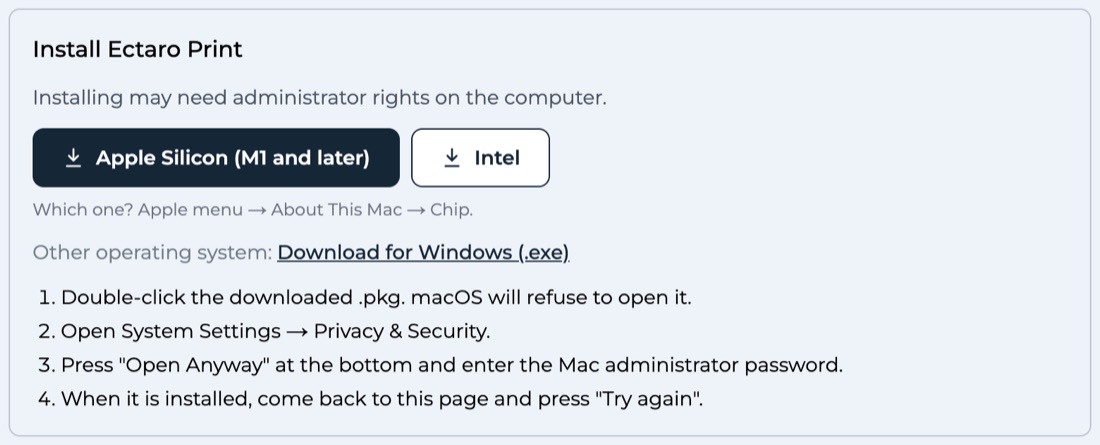
When the box “Is Ectaro Print running on this computer?” confirms it is running, you are ready.
How do you set up your printers?
- On the same page, switch on Use direct printing on this computer.
- Choose your Label printer and, if you send outside the EU, your A4 document printer. If your account’s label size is A4, your labels print on the A4 printer too.
- Press Print test page next to each printer. The page shows a frame 5 mm inside the edge. Cut off or shrunk? Set the paper size (100 × 150 mm) once in the printer’s own settings and test again.
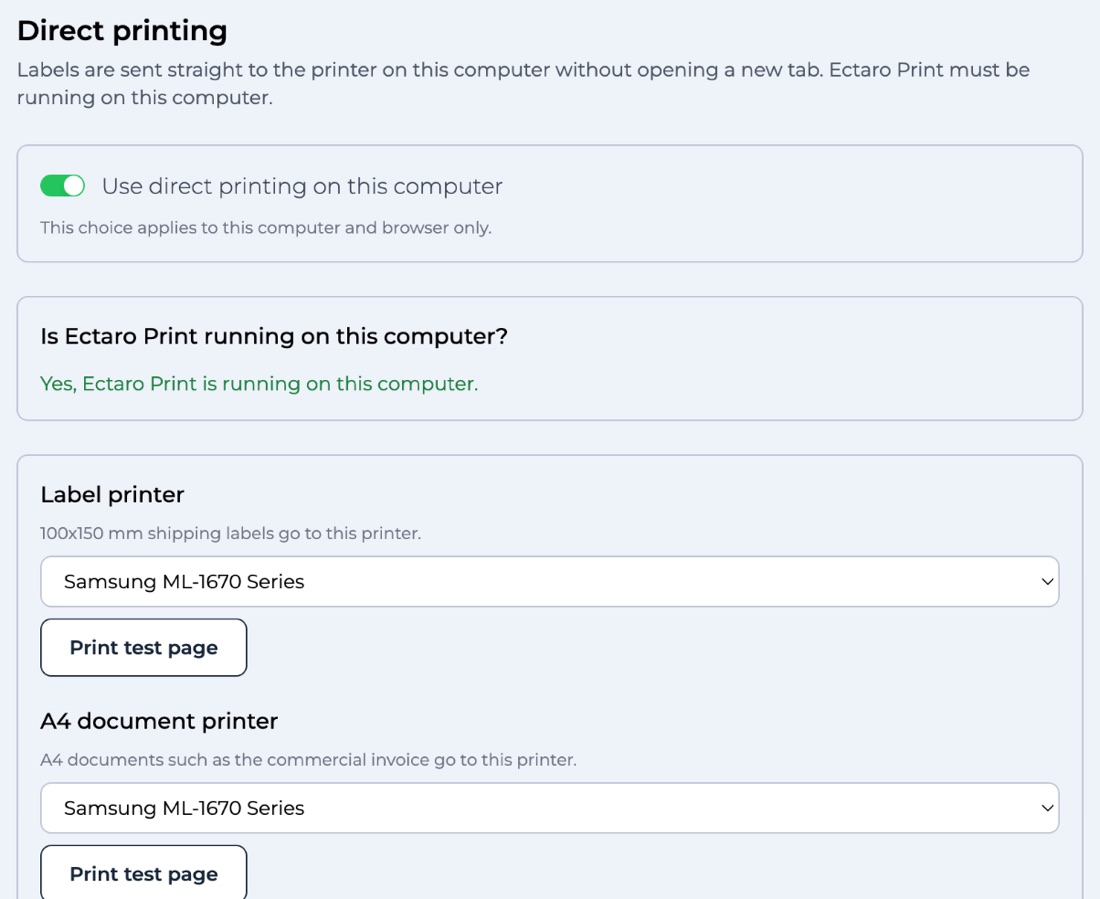
Your choices are saved on that computer and in that browser only. Using another computer? Install Ectaro Print there and set it up once.
How do you print?
A single label: on the order page or the Create label screen, the button now reads Create and Print. The label is created and printed in one go; a commercial invoice, if there is one, comes out of your A4 printer.
Bulk labels: on the result screen, press Print to send all labels to your printer (Print (A4) for commercial invoices), or Open in new tab to open the PDF.
When you see Sent to the printer, the job has been handed to your computer’s print queue. Some labels supplied by marketplaces themselves cannot be printed directly; those open in a new tab automatically.
What does not change?
Your labels, carriers, prices and invoices stay exactly the same. Without Ectaro Print, every label is still available as a PDF.
FAQ
- The page says “Ectaro Print was not found on this computer”. What now? Check that Ectaro Print is installed and running. Your browser may also have blocked local network access: click the lock icon in the address bar, allow “Local network access” for this site and press Try again.
- My Mac says the app cannot be opened. Go to System Settings → Privacy & Security and press Open Anyway. On recent macOS versions, right-click → Open no longer works.
- My printer is not in the list. Check that it is installed on your computer, then reload the page.
- The label is cut off or too small. Set the paper size to 100 × 150 mm in the printer’s own settings and check it with the test page.
- It says “Sent to the printer”, but nothing comes out. Check that the printer is on, has paper and is connected, and look at your computer’s print queue.
- On my Mac, printing fails with an error. If two printers have the same name, rename or remove one of them.
- How do I switch it off? Turn off the switch under Settings → Direct printing. Your labels open in a new tab again.
Questions? Open a ticket via Support → Create Ticket in Ectaroship.